Text Styles & Elements Used
Text Styles
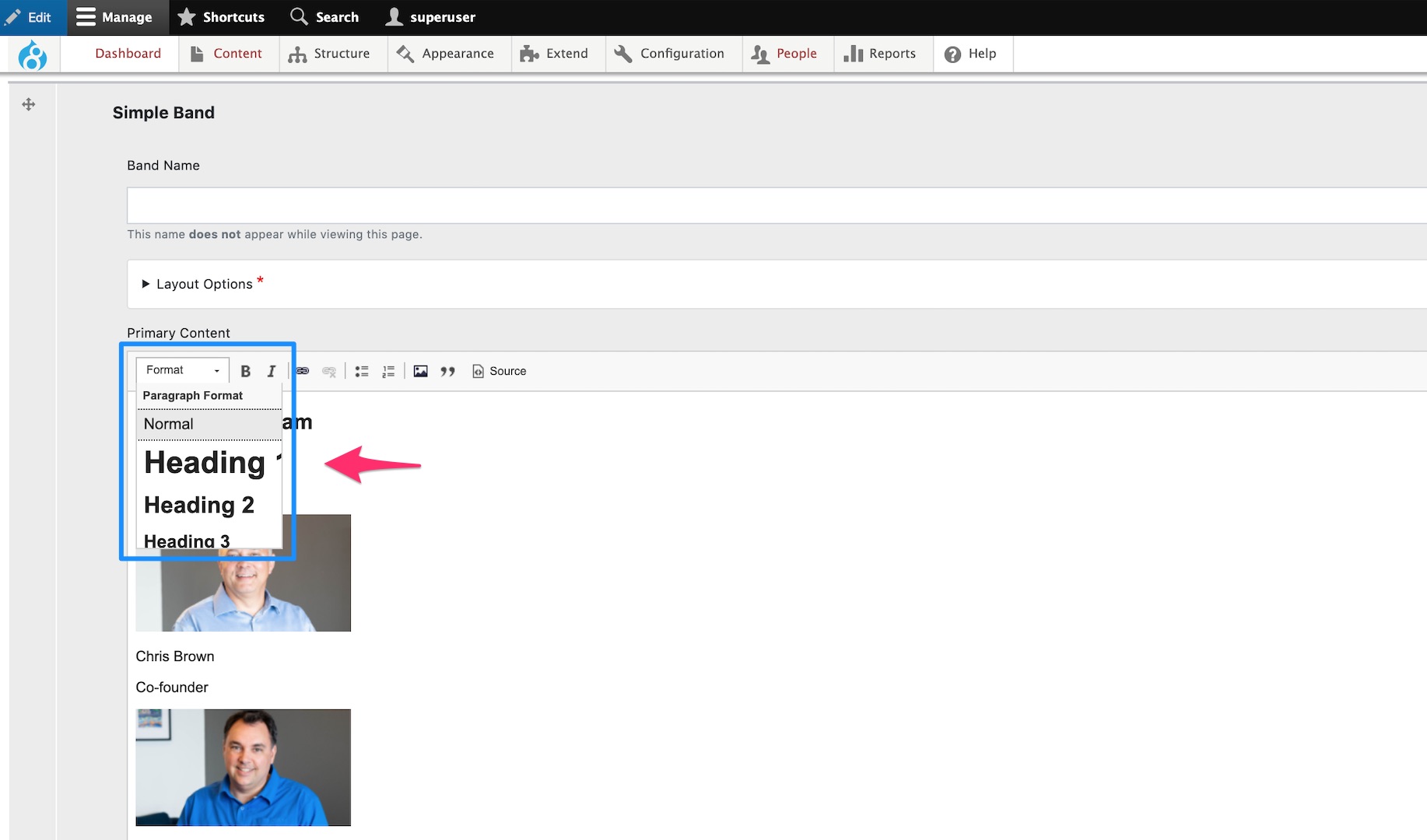

Text Styles can be applied by highlighting the text and selecting one of the elements in the
paragraph drop down menu in the Editor.
Heading 2: Used for page titles.
Heading 3: Used for the title of a section of a page.
Heading 4: Used for topics covered under each section of a page.
Paragraph: Regular text format.
Lead Paragraph: The lead paragraph takes the paragraph text and makes it a bit bigger, allowing it to stand out and draw in the reader.
Elements
Elements used helps with the look of the page layout. Most of the icons in the editor are going to look similar to that of
Microsoft Word or similar applications. Below are the elements used to structure the page that are more unfamiliar.
Microsoft Word or similar applications. Below are the elements used to structure the page that are more unfamiliar.
HR Rule: Horizontal Line. This is added after each section to the page as well as after each Topic. It adds a break between content.
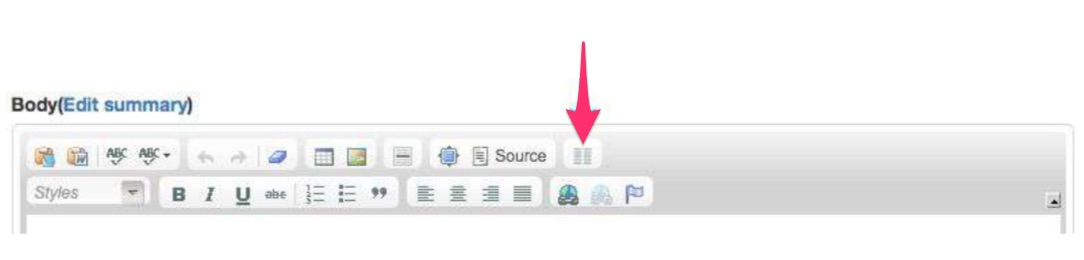
In this Section: This button places two 50/50 columns and is to be placed under the In This Section Heading.
Related Articles
How to Add a Page
How to Add a Page Adding a page is useful if you have additional information to offer your website visitors. Below are steps to take to add a page. Step 1: Click on the Pages link in the Dashboard. Step 2: Click on the + Add Basic Page button. This ...Adding Internal Links
Option 2: Internal Links Internal links are used to take the user to another page inside the website that the user is on. Step 1: Highlight the text you would like the link to be attached to. Step 2: Press the link icon. This looks like a world with ...Adding External Links
Option 1: External Links External links are used for websites that will take the user away from the site they are on. Step 1: Highlight the text you would like the link to be attached to. Step 2: Press the link icon. This looks like the world with a ...Adding Images onto a Web Page
This article describes how to add image to your web page using the WYSIWYG editor. Step-by-step guide Place your cursor in the editor where you want your image. Click the Image button in the toolbar. Click on the Browse Server button. You will now ...Adding Links
This article describes how to add links to your web page using the WYSIWYG editor. Step-by-step guide Select the text or image you want to link. Click the Link button in the toolbar. The Edit Link dialog box will appear. 4. Press Save. Please ...