Editing a Page
There are two options for editing a page. Through Manage Content or Editing from the page. See below for steps on each.
Option 1: Through Manage Content
Step 1: Go to Manage Content in the upper-left-hand corner. If you can't find the Manage Content button, please refer to the how to find Manage Content article.
Step 2: Click on the Pages link. 
Step 3: Find the page to be edited in the list. Press the Edit button on the right-hand side under the Operations column.
Step 4: Make changes to the page. Press the Save button and save all changes.
Option 2: Editing from Page
Step 1: Select the page link to be edited, page links are found listed in either a side menu or a navigation bar.
Step 2: Press the Edit tab above the content. (see photo below)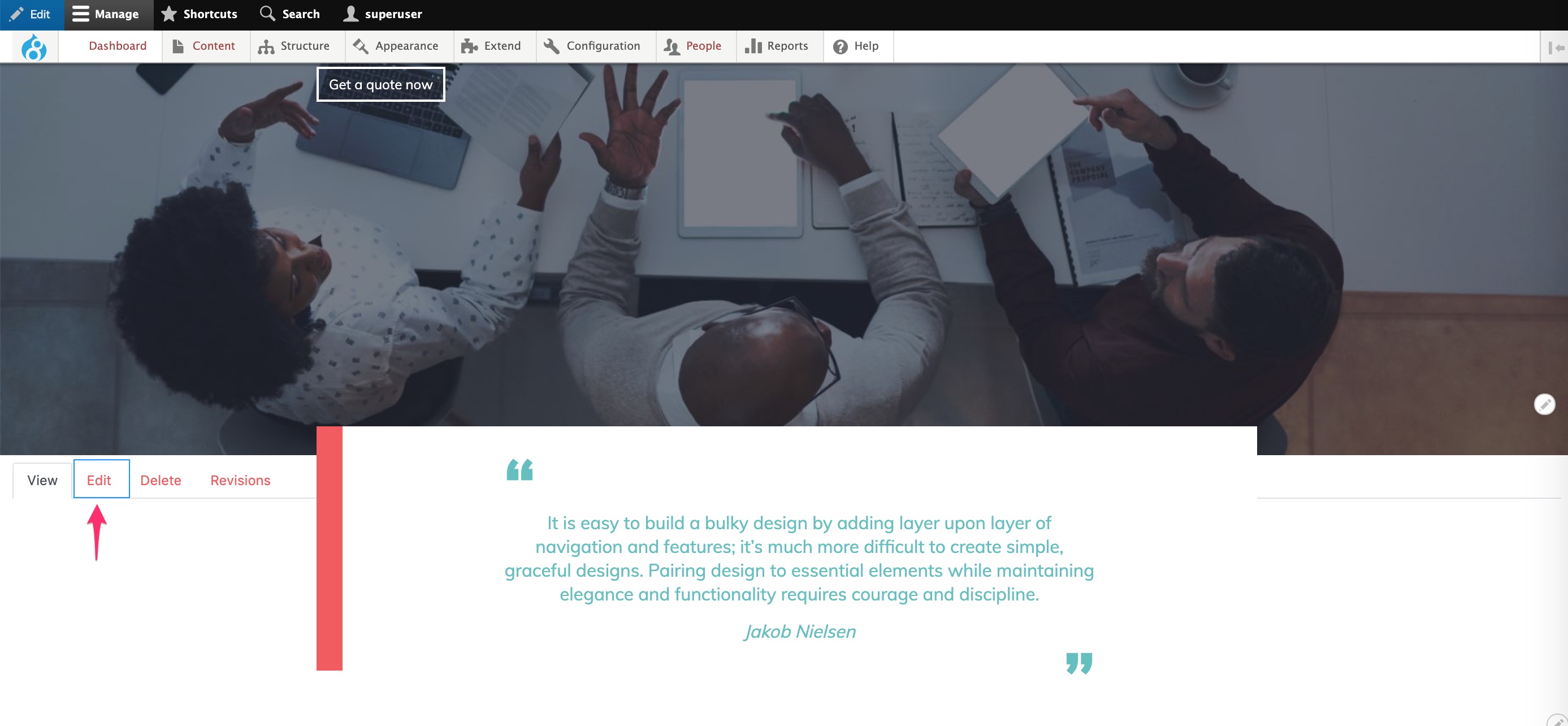
Related Articles
Editing Menu Name
If a page title has been changed, the menu item should also be changed to keep everything consistent. Step 1: To edit a menu name click on the Manage Content button in the upper left-hand corner. If you can't find the Manage Content button, please ...How to Add a Page
How to Add a Page Adding a page is useful if you have additional information to offer your website visitors. Below are steps to take to add a page. Step 1: Click on the Pages link in the Dashboard. Step 2: Click on the + Add Basic Page button. This ...How to Edit Front Page Callouts
The Call Outs act as important links that residents are most likely to find interesting or will need to know before any renovations to their property. Step 1: Click on Call Out link in the Dashboard. Step 2: Press the Edit link for the Call Out that ...Adding Images onto a Web Page
This article describes how to add image to your web page using the WYSIWYG editor. Step-by-step guide Place your cursor in the editor where you want your image. Click the Image button in the toolbar. Click on the Browse Server button. You will now ...Adding Images from Your Computer into a Web Page
This article describes how to add an image to your web page using the WYSIWYG editor. Step-by-step guide Place your cursor in the editor where you want your image. Click the Image button in the toolbar. The Insert Image dialog box will appear. This ...