Welcome to Aptitude Digital's Support Portal
This article is a detailed look into Aptitude Digital Client Care's Support Portal.
Creating an Account
To create an account you must first send an email to Aptitude Digital's Client Care team at clientcare@aptitude.digital. The first time you send the Client Care team an email, you will automatically receive an invitation link to the Support Portal. When you receive the email with the invitation link, simply click the invitation link and follow the account set-up instructions.
Viewing your Tickets
Step 1: Go to https://clientcare.aptitude.digital/portal/signin and log in.
Once logged in you will automatically be taken to the Home Tab.Step 2: To view your tickets you can click on the My Area Tab or the word Tickets just below the ticket image.
Step 3: Both the My Area tab and the Tickets link will bring you to the page below. This is where all your tickets are displayed. Here you have the ability to filter tickets by their Status.
These statuses help us organize each ticket in our help desk.
- Open: New Requests or Request that still require attention.
- Closed: Requests that have been completed.
- On Hold: Requests that are waiting for approval or further investigation.
Step 4: To open a ticket, click on the Ticket Number and Title. Here you can comment and respond to a member of our support team. To the right of this webpage, you will see the ticket's properties.
These properties include:
- Ticket ID: A unique identifier
- Status: Status of a ticket
- Channel: Initial form of communication
- Department: Depending on the type of request the department may change (ie. Digital Marketing, Development, and Support)
- Email: Email address of ticket owner
You can close a ticket via the Close Ticket button if your request has been completed. You can also create a new ticket via the Add Ticket button.

Note:
You may also edit your ticket's properties. To do so click on the Edit button next to Add Ticket. Doing this will bring you to the menu below. You will notice that you are only able to change the Classification of a ticket. Classifications are important because they allow us to get a quick overview of incoming tickets.
Here is a brief description of our classifications and how we use them:
- Question: Quick questions that require little to no action.
- Content Request: Content on a site that needs to be added or edited.
- Issue: Reporting minor or major problems within a website, server, or digital marketing platform.
- Feature Request: A new feature is desired, needing to be developed and implemented.
How to view Knowledge Base Articles
Step 1: Go to https://clientcare.aptitude.digital/portal/signin and log in.
Once logged in you will automatically be taken to the the Home Tab.Step 2: To view the knowledge base you can click on the Knowledge Base tab or the word Knowledge Base just below the image of the paper.
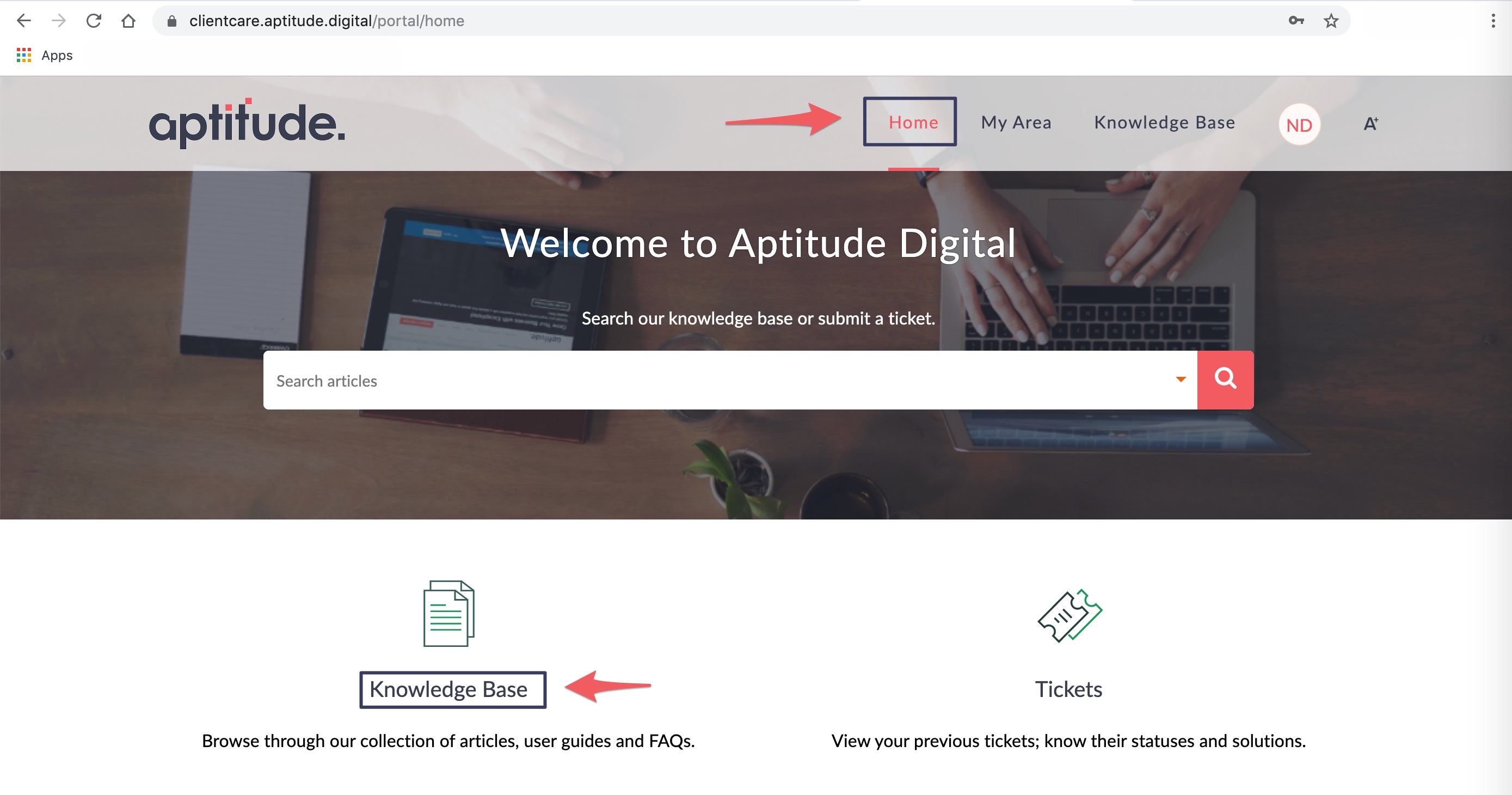
Step 3: Both the Knowledge Base tab and the Knowledge Base link will bring you to the Knowledge Base homepage. This is where all of our Knowledge Base articles are displayed. Here you will see all of our articles broken down into categories, this makes it easier to find the articles that relate to the help you need. There is also a search bar than can be used to find articles quickly and easily.
Replying to Tickets
If you do not wish to create a portal you are still able to reply to tickets. Each ticket acts as an email conversation, to reply to the same ticket click Reply All in your email client and craft a response. The subject and recipient of the email the subject must remain the same, though you can add new participants.
Related Articles
Glossary
Definition Example URL Full website address including http:// Our website address is https://aptitude.digital. URI Part of a website address shows where on a site you are. Our website address's URL is https://aptitude.digital, if we were to go to the ...Adding Links
This article describes how to add links to your web page using the WYSIWYG editor. Step-by-step guide Select the text or image you want to link. Click the Link button in the toolbar. The Edit Link dialog box will appear. 4. Press Save. Please ...Troubleshooting GSuite Account Login
Problem User is unable to log into their GSuite account. This can be caused by a couple of different issues: The user is logged into another Google Account on the same web browser. The user does not know the password for their account. Solution - ...How to Add a Page
How to Add a Page Adding a page is useful if you have additional information to offer your website visitors. Below are steps to take to add a page. Step 1: Click on the Pages link in the Dashboard. Step 2: Click on the + Add Basic Page button. This ...Microsoft Office 365 Email Setup
Here are the instructions on how to access your email: Please note: For best results with Office 365, Aptitude recommends using the applications that are native to it. In the case of email, the Microsoft Outlook email client is recommended for all ...